


You have spent hours debugging a test failure, only to discover the root cause is a missing library on the CI server that exists on your local machine. The test itself is fine — the environment is the problem. This scenario plays out on most QA teams at some point. Docker solves it by packaging your application and its dependencies into a single, portable unit. In this article, you will learn how Docker works, how to build your first container image, and how to integrate containerization into your QA workflows. Whether you run functional tests, API checks, or browser-based automation, the principles here apply directly to your daily work.
What Is Docker?
Docker is an open-source platform that uses OS-level virtualization to deliver software in packages called containers. Think of a container as a lightweight, standalone executable that bundles your application code together with its runtime, system tools, libraries, and configuration files. Unlike traditional virtual machines, containers share the host operating system's kernel, which makes them significantly faster to start and far less resource-intensive.
A Docker container image is the blueprint for a container. It is a read-only template composed of stacked layers — each layer representing an instruction from a Dockerfile. When you run an image, Docker creates a writable container instance on top of those layers. This layered architecture means that if ten containers share the same base image, that base is stored only once on disk.
Why Docker Matters for QA
Environment inconsistency is one of the most persistent obstacles in software testing. The ISO/IEC/IEEE 29119-2 standard defines test environment requirements as part of the test process, emphasizing that the environment must be controlled and repeatable [1]. Docker directly addresses this by guaranteeing that what runs on your laptop runs identically in CI and staging.
Here is what containerization typically changes for QA teams:
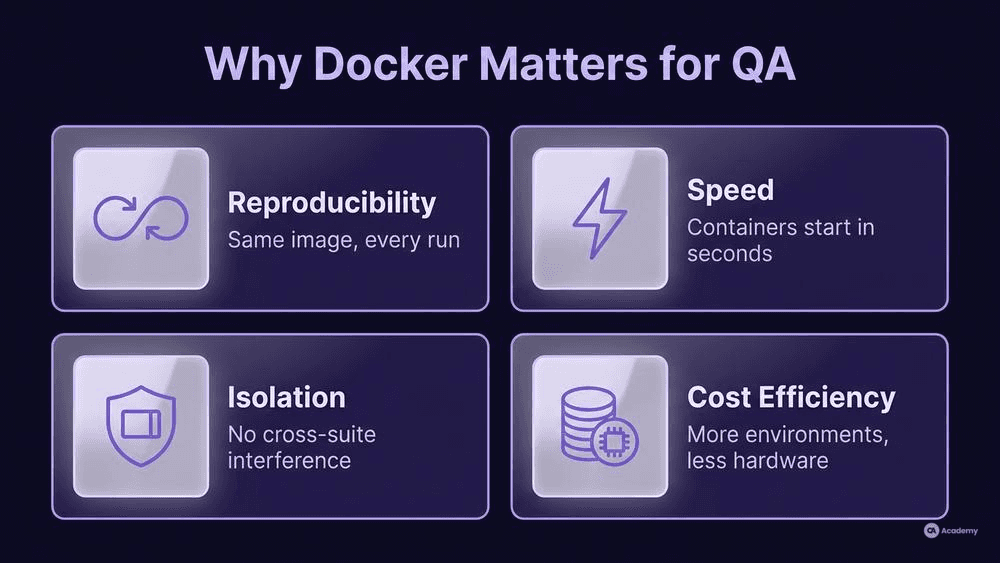
- Reproducibility. Every test run uses the same image, removing drift between environments.
- Speed. Spinning up a container takes seconds, not minutes. Parallel test execution becomes practical.
- Isolation. Each container runs in its own namespace, so one test suite cannot corrupt another's state.
- Cost efficiency. Containers consume fewer resources than VMs, allowing you to run more test environments on the same hardware.
The ISTQB Foundation Level syllabus highlights that adequate test environments are a prerequisite for reliable test execution [2]. Docker is one of the most practical ways to meet that prerequisite in modern delivery pipelines.
How to Build Your First Docker Container Image
Building a Docker container image starts with writing a Dockerfile — a plain-text file containing step-by-step instructions Docker uses to assemble the image. Mastering Dockerfile syntax is essential because poorly written Dockerfiles lead to bloated images, slow builds, and security vulnerabilities.
Prerequisites and Setup
Before writing your first Dockerfile, make sure you have:
- Docker Engine installed (Docker Desktop for macOS/Windows, or Docker CE for Linux)
- A terminal with access to Docker CLI
- A simple application to containerize (a small API, a test runner, or even a static HTML page)
Verify your installation by running:
`bash docker --version
Expected: Docker version 2x.x.x or higher
`
Step 1: Write the Dockerfile
Below is a minimal Dockerfile for a Python-based test runner. Each line represents a layer in the final image.
`dockerfile
Use an official Python runtime as the base
FROM python:3.12-slim
Set working directory inside the container
WORKDIR /app
Copy dependency file first (layer caching optimization)
COPY requirements.txt .
Install dependencies
RUN pip install --no-cache-dir -r requirements.txt
Copy the rest of the application
COPY . .
Default command: run pytest
CMD ["pytest", "--verbose"] `
Key Dockerfile syntax principles to note:
- Order matters. Docker caches each layer. Place instructions that change infrequently (like installing dependencies) before those that change often (like copying source code).
- Use slim base images.
python:3.12-slimis roughly 150 MB smaller thanpython:3.12, reducing both build time and attack surface. - Avoid `latest` tags. Pin your base image to a specific version to prevent unexpected breakages.
Step 2: Build and Run
`bash
Build the image and tag it
docker build -t my-qa-tests:1.0 .
Run the container
docker run --rm my-qa-tests:1.0 `
The --rm flag automatically removes the container after it exits, keeping your environment clean.
Common Pitfalls
- Running as root. By default, containers run as root. Add a
USERinstruction to switch to a non-root user — this is especially important for security testing contexts. The OWASP Top 10 identifies security misconfiguration as a significant risk category [3], and running containers as root is a textbook example of such misconfiguration. - Ignoring `.dockerignore`. Without this file, Docker copies everything in the build context, including
.gitfolders, IDE configs, and test reports. Create a.dockerignorefile to exclude unnecessary content. - Large image sizes. Multi-stage builds let you compile code in one stage and copy only the output to a smaller runtime image.
Docker Networking Modes for Test Environments
When you test multi-service applications — an API server, a database, and a message queue, for instance — understanding Docker networking modes becomes critical. Network misconfiguration is a frequent source of false test failures.
Docker provides several networking modes:
Mode | Behavior | QA Use Case |
|---|---|---|
bridge (default) | Containers get their own IP on a virtual bridge network | Most test setups; services communicate via container names |
host | Container shares the host's network namespace | Performance testing where network overhead must be minimized |
none | No networking | Testing offline behavior or network-failure scenarios |
custom bridge | User-defined network with DNS resolution | Multi-container test environments with Docker Compose |
For most QA workflows, a custom bridge network created through Docker Compose is the right choice. It provides automatic DNS resolution between services, meaning your test code can connect to a database container using its service name (e.g., db) rather than a hardcoded IP.
What to avoid: Do not use host mode in CI/CD pipelines unless you have a specific performance testing need. It bypasses Docker's network isolation and can cause port conflicts when running parallel jobs.
Best Practices for QA Teams Using Docker
Do This
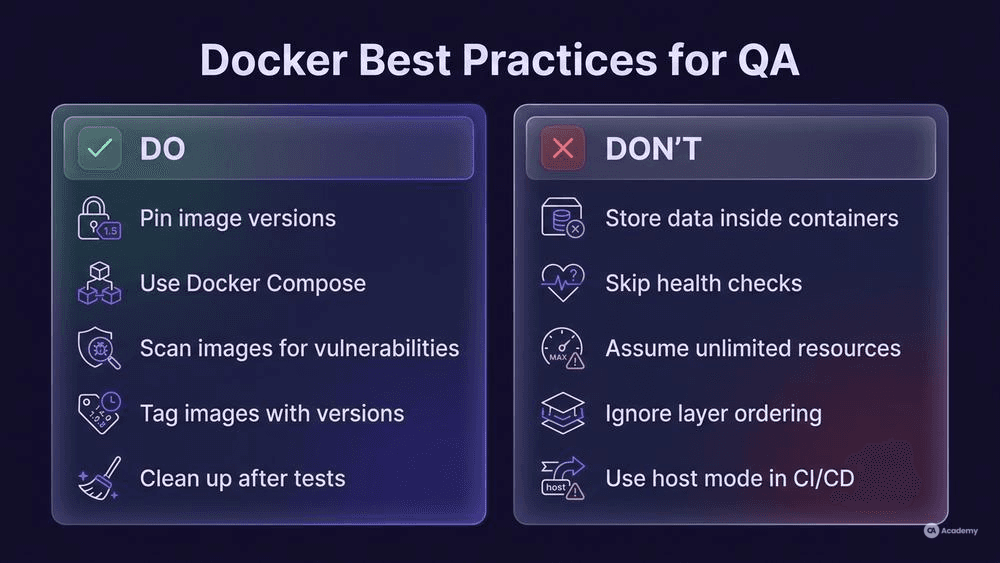
- Pin image versions in both your Dockerfile
FROMinstructions and yourdocker-compose.ymlservice definitions.selenium/standalone-chrome:125.0is far more reliable thanselenium/standalone-chrome:latest. - Use Docker Compose for multi-container test environments. Define your app, database, and test runner in one
docker-compose.yml, and your entire team shares the same setup. - Scan images for vulnerabilities before they reach production. Tools like Trivy, Docker Scout, and Snyk Container provide automated scanning.
- Tag images meaningfully. Use Git commit hashes or semantic versions — not just
latest. - Clean up after tests. Run
docker system pruneperiodically in CI to reclaim disk space from dangling images and stopped containers.
What NOT to Do (Via Negativa)
- Do not store test data inside the container. Use volumes or bind mounts for test data and reports. Data inside a container is lost when the container stops.
- Do not skip health checks. Without a
HEALTHCHECKinstruction or a Composehealthcheck, your test runner may start before the database is ready, causing false failures. - Do not assume unlimited resources. Set memory and CPU limits for containers in CI — an unconstrained container can starve other pipeline stages.
- Do not ignore layer ordering. Copying your entire codebase before installing dependencies invalidates the cache on every build, eliminating one of Docker's core efficiency advantages.
The ISO/IEC 25010 quality model defines portability — including installability and adaptability — as a product quality characteristic [4]. Docker directly supports these attributes by decoupling the application from the host environment. However, you realize these benefits only when you follow these practices consistently.
Tools Comparison: Container Orchestration Basics
Once you move beyond single containers, you need some form of container orchestration to manage multiple services, scale test runners, and handle failures. Here is how the primary tools compare for QA purposes:
Feature | Docker Compose | Kubernetes | Docker Swarm |
|---|---|---|---|
Complexity | Low | High | Medium |
Best for | Local dev/test, small CI | Large-scale parallel testing | Simple multi-host setups |
Learning curve | Hours | Weeks to months | Days |
Scaling | Manual ( | Auto-scaling with HPA | Basic auto-scaling |
Health checks | Built-in | Built-in + readiness/liveness probes | Built-in |
QA recommendation | Start here | When parallel execution at scale is needed | Rarely the best choice for QA-specific workloads |
Practical recommendation: Most QA teams should start with Docker Compose. It handles the majority of test environment scenarios — spinning up a web app, a database, and a Selenium grid — without the operational overhead of Kubernetes. Move to Kubernetes only when you need to run hundreds of parallel test sessions or manage multi-cluster environments.
Real-World Example: Stabilizing a Flaky Test Suite
⚠️ Disclaimer: The following scenario is an illustrative example based on typical industry patterns. The specific metrics are hypothetical estimates designed to demonstrate realistic outcomes, not measured data from a documented project. They should not be cited as factual benchmarks.
Context
A mid-size fintech team runs a regression suite of 1,200 UI tests against a microservices backend. The suite targets three browsers and connects to a PostgreSQL database and a Redis cache.
Challenge
The team experiences a flaky test rate of roughly 18%. Investigation reveals three root causes:
- Environment drift. The CI servers run different versions of Chrome and ChromeDriver than local machines.
- Port conflicts. Parallel pipeline runs occasionally bind to the same host ports.
- Database state. Tests depend on a shared staging database whose state changes unpredictably.
Solution
The team adopts Docker across their testing pipeline:
- Selenium Grid in Docker Compose. Each pipeline run spins up its own Selenium Grid with pinned browser versions, eliminating environment drift.
- Isolated database containers. Each test run gets a fresh PostgreSQL container initialized from a seed script. No shared state.
- Custom bridge network. All services communicate on a user-defined Docker network, removing port conflicts.
- Health checks. The test runner waits for a
HEALTHCHECKon the database and Selenium hub before executing tests.
Results (Illustrative)
- Flaky test rate drops from 18% to approximately 3%.
- Average pipeline duration decreases by roughly 40% due to parallel container execution.
- Developer confidence in test results increases measurably, leading to fewer "re-run and hope" cycles.
- New team members set up their local test environment in under 10 minutes instead of half a day.
Key Takeaways
- Most flaky tests are environment problems, not test logic problems. Docker eliminates the most common category of environment-related flakiness.
- Investing a few days in Dockerizing your test infrastructure typically pays back within weeks through reduced debugging time.
- Start with the highest-pain test suite first — the one with the most flaky failures — and expand from there.